
Prerequisites
To enable a setup where remote participants and shared content are displayed side‑by‑side using the ClickShare CX‑50 Gen2, ensure the following requirements are met:
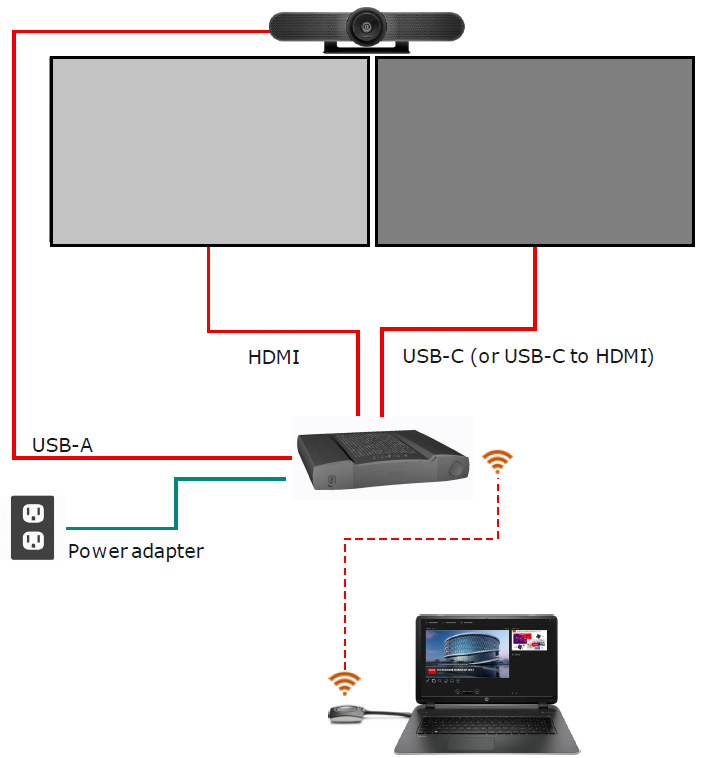
Connection setup (example)
Conference call — side-by-side display of participants and shared content
During a conference call (e.g., Microsoft Teams or Zoom), launching the ClickShare Desktop App triggers the ClickShare HostFlow feature. This presents two options:
- Show participants on the room display, or
- No, only share content to the room display
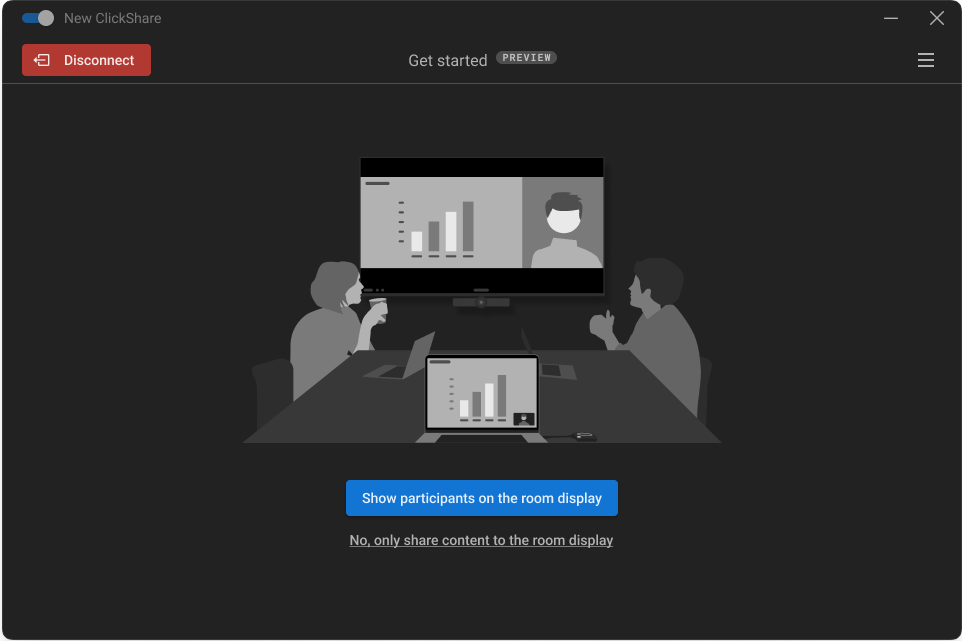
Show participants on the room display
Select this option to enable a side‑by‑side viewing experience of meeting participants and shared content. A dual-screen layout will appear in the ClickShare Desktop App:
- One screen displays the shared content
- The other screen shows the remote meeting participants
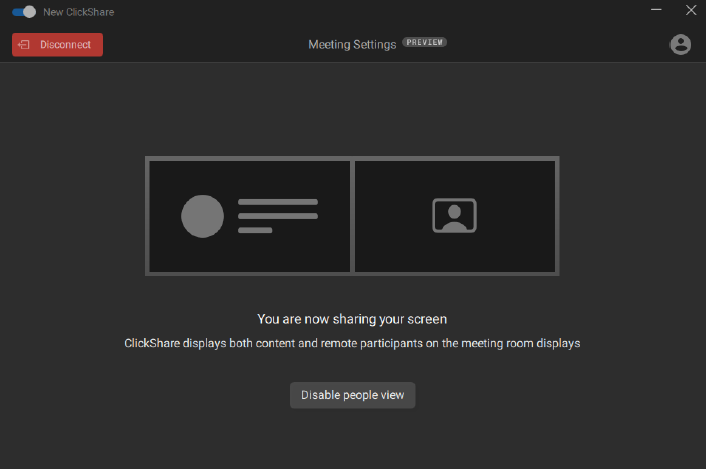
This enables content and participants to be viewed simultaneously.
Share your content directly in your meeting (e.g., Microsoft Teams or Zoom). The shared content and participants will be displayed simultaneously across the room displays.
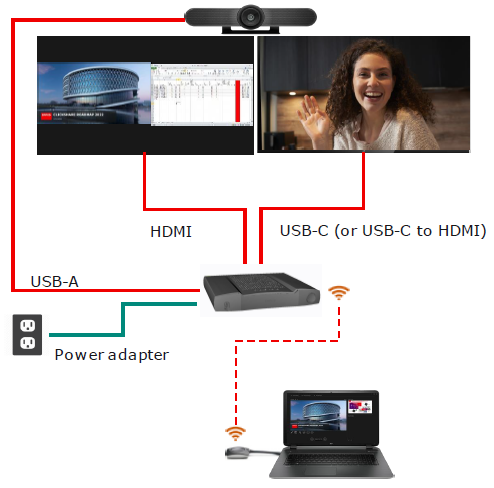
Example: Content is shown on one screen (split view), while participants appear on the other
Note: If no content is shared, the remote meeting participants will be duplicated on both displays.
Note: See KB2322 and KB2291 for instructions on using Microsoft Teams and Zoom with ClickShare Conference respectively.
No, only share content to the room display
Select this option if you do not require the side‑by‑side view of participants and content. This will return to the standard ClickShare Desktop App sharing experience.
Within the ClickShare Desktop App, you can select the desired content from the thumbnail list or simply press the ClickShare Button to share your desktop to the room display.

