When the ClickShare App is trying to share a content, it can happen that it generates a notification for granting the permission in case screen recording is not allowed. The standard required permissions are Screen Recording and Location Services.
On some devices and in combination with an already installed ClickShare Desktop App we noticed that it is not possible to change the screen recording setting to ON; the slider always reverts back to OFF.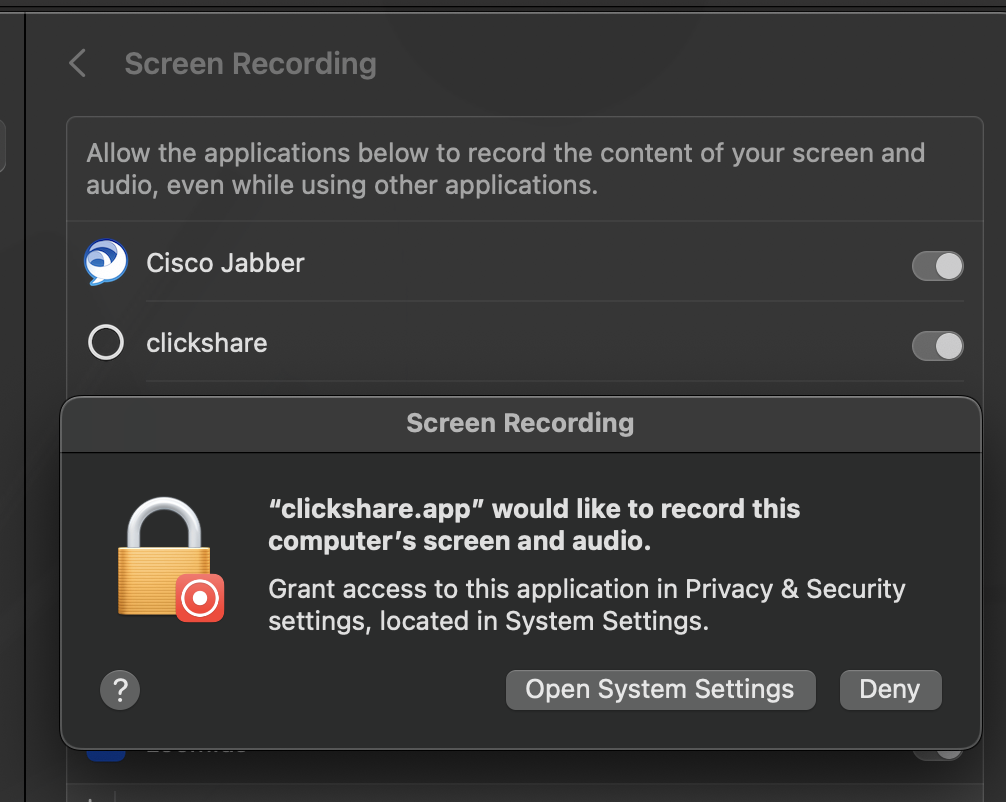
Solution
Preliminary checks:
-
Make sure you are running the latest ClickShare Desktop App version. For latest version, click here.
-
Make sure your macOS is up to date.
Troubleshooting steps:
In case the issue still persists
-
Remove the Button and stop the ClickShare Desktop App from running (make sure it is not running in the background).
-
Remove the ClickShare Desktop App from the Mac using Mac AppCleaner, you can drag the ClickShare Desktop App into this tool, and it will completely remove it.
-
Once done, go to the Screen Recording settings and check if ClickShare is still visible.
-
If ClickShare still visible in recording settings use the following command to remove the ClickShare Bundle ID from the screen recording settings:
tccutil reset ScreenCapture com.barco.clickshare -
Now install the Clickshare Desktop App and set the screen recording through the pop up.
Workaround:
If the previous steps do still not solve the issue, pleasure continue on with the following workaround mentioned below:
- IMPORTANT: Do make sure that the app has already been stopped before running the script.
- After the app has been quit, you can use command "
sudo bash Cleanup_ClickShare.sh" in combination with a self-made script to cleanup any remaining Bundle Id's.
Example of a script
;
After that, just launch the ClickShare App from Applications or directly plug-in the Button.
If the permission request popup comes up again, toggle the setting to grant it then reopen app as before.
Contact Barco Support:
If the issue still remains unresolved, please contact the Barco Support by creating a service ticket (how to: see KB6024).